What you can use it for
- convert documents
- merge pdf
- compress pdf
Merge PDFs in the order you need
Need to put several PDFs into one file and rearrange pages inside an attachment? Online2PDF gives you separate controls for file order and page selection. Use the two practice PDFs below to see how those settings work together.
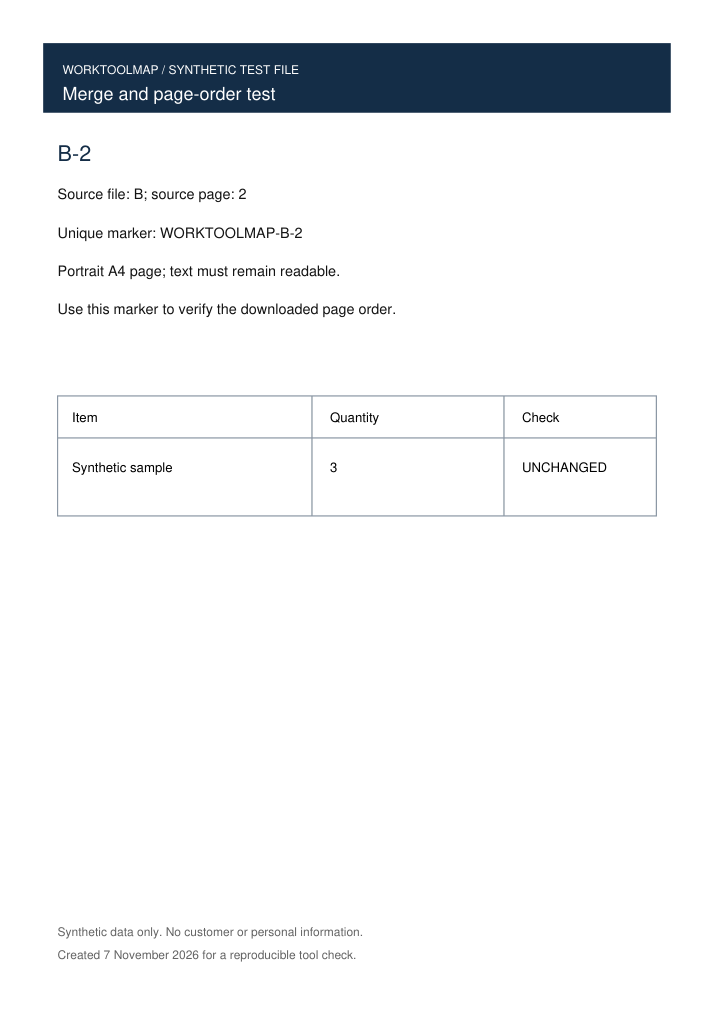
Checked on 7 November 2026: we placed file B before file A and entered 2,1 for B’s pages. The actual four-page download followed B-2 → B-1 → A-1 → A-2. All extracted text, page dimensions and rotation matched the inputs. The output was readable, with changes to font rendering.
A short workflow
- Open Online2PDF and choose the two practice files, merge-input-a.pdf and merge-input-b.pdf.
- Drag file B above file A. This controls which document appears first in the merged PDF.
- Open file B’s page-selection control and enter 2,1. This reverses B’s two pages; leave A’s pages in their original order.
- Choose Merge files, one after another, with PDF output, then click Convert and save the completed download.
- Open the downloaded PDF and check all four page markers: B-2, B-1, A-1, A-2. Inspect the text and tables before using the merged file.
Before you start
What is the difference between file order and page order?
Moving B above A puts the entire B document first. Entering 2,1 for B changes the order of pages inside B. We used both controls in the same merge.
Will the result look exactly like the original pages?
The text and page sizes matched in our sample, and all four pages were readable. The PDF embedded font subsets and its renders were not pixel-identical to the inputs. For a document whose typography must remain exact, compare the downloaded pages with the originals.
Was an account or payment needed?
Neither was needed to merge these two small PDFs. The linked originals and actual download let you inspect the same result.
Notes based on evidence checked .
Before you choose
Set file order and internal page order separately, then check the downloaded PDF. If exact typography matters, compare the result with the original pages: our sample retained its text but rendered differently.
About this listing
Official sources reviewed on . The test notes below describe the scope of our check.
Test notes
On 7 November 2026 we uploaded two synthetic two-page PDFs to Online2PDF, moved B before A and set B’s pages to 2,1. The actual download had four pages in B-2, B-1, A-1, A-2 order, with matching extracted text, dimensions and rotation. All four output pages were visually reviewed. Pixel equality did not pass: the output embedded Helvetica subsets and rendered differently. This is a verified merge-and-order result, without a lossless-layout claim.
Features and plans change. If something here is out of date, suggest a correction.